PioCloud is a service that allows you to run PioSOLVER scripts in the cloud. Upload your script and describe the job parameters, we will run it on our infrastructure and send you an email when it is finished. You can then download the results and explore them with PioViewer.
PioCloud and PioViewer
PioCloud can run any PioSOLVER script in the cloud, but it is especially designed to complement PioViewer. To run sims that work properly in PioViewer, there are some things that need to be handled correctly: PioViewer will take care of these for you, when you use the integration it offers.
Purchasing credits
Before you run a job on PioCloud, you need to make sure you have credits in your account. Your balance is always shown at the top of the page.
If you have an Edge or Pro license that is within the active support window, and you are registered on PioCloud using the same email address, you will be given a number of free credits to start with.
If you need to purchase more credits, you can do so from the account page.
Generating a Script
PioCloud needs two inputs for any jobs it runs: the script and a set of post-flop boards (currently, PioCloud only supports post-flop solving).
PioViewer makes it easy to generate a script for running on PioCloud. Once you have your script prepared, you can go to the Postflop Tree Building and Calculations tab, and click the Solve in PioCloud button and copy the script into the clipboard.
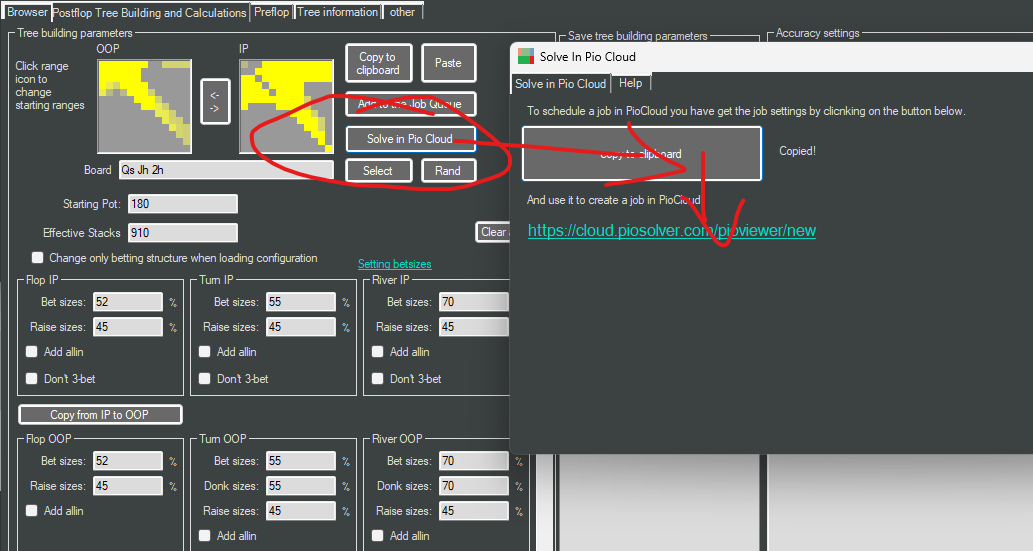
Running a Job
To start a job in PioCloud, follow the link in the PioViewer window, or select New Job at the top of the page. The first step is to provide the script, which you can paste into the input field, since it was copied to the clipboard in the previous step. Then click Check the script.
PioCloud checks the script and opens the job settings, in four steps: Overview, Flops, Accuracy and limits and Review and start. A new job starts with the settings of your last job, so if nothing has changed, you can go straight to Review and start.
Specifying Boards
You also need to select some boards for the job, in the Flops step. Even if you eventually want to run on all 1755 strategically different boards, you should first run on a smaller subset of boards to make sure everything is working as expected. The PioSOLVER subsets tab has the same subsets as the files provided with PioViewer in the preflop_subsets folder, and you can also paste your own boards in the Paste tab.
Under the picker, the charts show how the boards you picked differ from all flops.
26 flopsPioSOLVER subset
3every PioSOLVER subset, then all flopsAll 1755
Popular:
Solving
26 flops
PioSOLVER subset
Compared with all flops: above the line more often, below less often
Point at a bar to see what it shows; click or tap it to keep it.
Setting the Accuracy
In the Accuracy and limits step, you choose how accurate the solutions should be, as a percentage of the pot. A lower number is more accurate, but it takes longer and costs more. Each accuracy has a name, from Max to Low, to help you choose.
Each board also has a run time limit. PioCloud runs the scripts on a variety of hardware, and the run time limit will be scaled by the benchmark of the machine you tested the script on. A board that reaches the limit is still saved, but it is less accurate than you asked for.
High0.25% of pot
% of pot= 0.45 chips
Higher accuracy takes longer and costs more.
Starting the Job
The last step, Review and start, shows the estimated cost of the job, the worst case and your balance. If you are not sure about the price, tick Solve one board first, then ask me: PioCloud solves one board and asks you, with a closer estimate, before it runs the rest. You can also set a cost limit for the job. When you click Start job, we will run it and send you an email when the last board is done.
Following a Job
You can find all your jobs on the Spots page. While a job runs, its page shows every board as it goes from Waiting to Solving to Done. A finished board shows its exploitability as a percentage of the pot, how long it took, and why it stopped: most boards stop when they reach the accuracy, some at the time limit. If some boards failed or timed out, you can rerun just those boards from the same page.
Waiting14
A♠K♠6♥
A♠Q♥8♠
A♠T♥9♦
A♠9♠5♥
A♠7♥4♦
K♠Q♥7♥
K♠T♠7♥
K♠6♥5♠
Q♠8♥5♥
J♠5♥3♦
T♠8♥3♦
9♠4♠3♥
8♠6♥4♥
7♠6♠3♥
Solving4
K♠J♠2♥
solving
K♠4♥2♦
solving
J♠7♥2♦
solving
6♠5♠2♥
solving
Done8
A♠8♥8♦
0.25%3:23
Accuracy metQ♠Q♥9♠
0.23%3:25
Accuracy metQ♠3♠2♥
0.22%4:18
Accuracy metJ♠J♥T♠
0.23%2:32
Accuracy metJ♠T♠T♥
0.34%10:00
Time limitJ♠9♠9♥
0.24%4:16
Accuracy metT♠4♥2♦
0.22%5:11
Accuracy met6♠6♥5♦
0.21%2:30
Accuracy metDownloading Results
When a job is finished or paused, you can download all the sims that have been produced, with the Download button on its page; while it runs, the same button downloads the boards finished so far. If your version of PioViewer supports it, PioViewer can download the whole job for you, with the download link from the download page. Otherwise, you may find it helpful to use a browser extension to download multiple files at once, like the Multi-File Downloader for Chrome.
Download
| Job | BTN vs BB SRP |
|---|---|
| Number of Boards | 26 |
Download with PioViewer
From the File menu, select the File -> Download files from PioCloud option (if supported in your version of PioViewer). In the window that opens, enter the download link.
- Download link
Basic Download
To download one or two sims, you can download the files directly from the browser.
To download many sims, we provide a PowerShell Script you can run on your computer.
| Board | Stopped because | Exploitability | Run Time |
|---|---|---|---|
| 6s6h5d | Accuracy reached | 0.380 | 2m 30s |
| As8h8d | Accuracy reached | 0.450 | 3m 23s |
| Js9s9h | Accuracy reached | 0.440 | 4m 16s |
| JsTsTh | Time limit | 0.612 | 10m 0s |
| JsJhTs | Accuracy reached | 0.420 | 2m 32s |
| QsQh9s | Accuracy reached | 0.410 | 3m 25s |
| Qs3s2h | Accuracy reached | 0.400 | 4m 18s |
| Ts4h2d | Accuracy reached | 0.390 | 5m 11s |
| Ks4h2d | Accuracy reached | 0.380 | 2m 34s |
| 6s5s2h | Accuracy reached | 0.450 | 3m 27s |
| Js7h2d | Accuracy reached | 0.440 | 4m 20s |
| KsJs2h | Accuracy reached | 0.430 | 5m 13s |
| 9s4s3h | Accuracy reached | 0.420 | 2m 36s |
| Js5h3d | Accuracy reached | 0.410 | 3m 29s |
| 7s6s3h | Accuracy reached | 0.400 | 4m 22s |
| Ts8h3d | Accuracy reached | 0.390 | 5m 15s |
| 8s6h4h | Accuracy reached | 0.380 | 2m 38s |
| As7h4d | Accuracy reached | 0.450 | 3m 31s |
| Ks6h5s | Accuracy reached | 0.440 | 4m 24s |
| Qs8h5h | Accuracy reached | 0.430 | 5m 17s |
| As9s5h | Accuracy reached | 0.420 | 2m 40s |
| AsKs6h | Accuracy reached | 0.410 | 3m 33s |
| KsTs7h | Accuracy reached | 0.400 | 4m 26s |
| KsQh7h | Accuracy reached | 0.390 | 5m 19s |
| AsQh8s | Accuracy reached | 0.380 | 2m 42s |
| AsTh9d | Accuracy reached | 0.450 | 3m 35s |